
NAVIA separates two things that older panels ran together: the aircraft, which belongs to whoever owns it, and the pilot, who belongs to nobody. The aircraft holds its configuration — polar, envelope, devices, screens. You hold your settings, your layouts, your waypoints and your flights, in an account that travels with you to any NAVIA-equipped aircraft in the world.
This article covers who is allowed to do what on board, how ownership is established and shared, how the system decides which pilot is in command, and how screens work — including the one in your pocket.
Your account, and what it carries
An account is created once, either from the login page of any NAVIA display or at LX Cloud on the web. From then on it carries your personal settings, your display layouts, your waypoint and airspace files and your flights. Sign in on a different aircraft and all of it arrives with you.
The login page offers two ways in:
- Sign in — e-mail and password. Two checkboxes matter.
Remember mestores your credentials on the Core for that screen, so from then on it logs you in automatically at power-on and you will not see the login page again until you log out.Are you the primary pilot?declares you pilot in command for this flight. - Guest — name, weight and e-mail, nothing else. Meant for passengers and for pilots without an account. A guest gets a fresh copy of the default settings, and nothing is uploaded to the cloud.
Both doors exist in the online demo as well, and behave exactly as they do here: as a guest you get the defaults and keep nothing, while signing in with your LX Cloud account brings your own profiles and layouts — and saves what you change there back to your account.
The four roles
What you are allowed to do on a particular aircraft depends on your role on that aircraft, not on your account as such.
| Role | What it means |
|---|---|
| Owner | The aircraft is registered to this account. Full access, including all aircraft settings. |
| Admin | A user the owner has granted administrator rights. Same technical rights as the owner. |
| Regular | Any other signed-in account: full personal settings, navigation and logbook, but no aircraft configuration. |
| Guest | Signed in without an account — name and weight only. Personal settings are not saved to the cloud. |
A Regular or Guest user does not see the owner-only menu entries at all. Airplane Settings and Instruments are simply absent, which is why an aircraft can be handed to a renting pilot with no risk to its configuration.
Ownership, sharing and flying somebody else's aircraft
Ownership lives in LX Cloud, not in the aircraft. When the Core's serial number is registered to your account, the aircraft recognises you as the owner the moment you sign in — on any of its screens. There is no owner setting in the cockpit to get wrong.
That also makes sharing trivial. A partnership, a club or a syndicate is a matter of granting roles to the other accounts in LX Cloud; nothing needs configuring on board. Grant Admin to your co-owner and their rights are identical to yours; leave the rest of the club as Regular users and they get their own settings without being able to touch the aircraft's.
Sign in on an aircraft that is not registered to your account — a rented glider, a club machine — and you are simply a Regular user there. All your personal settings and layouts arrive with you, the aircraft's own configuration stays untouched, and you fly with your waypoints on somebody else's panel.
Pilot in command
One signed-in pilot at a time is the pilot in command. Three things follow from it: the PIC's name goes into the header of the recorded IGC flight, the PIC's waypoint and airspace files are the ones loaded for navigation, and in a two-seater the second pilot is recorded as crew.
Which pilot is PIC follows from the seat a screen belongs to — the station marked Pilot in command in weight and balance — and can be declared explicitly with the Are you the primary pilot? checkbox at login.
The PIC's waypoint and airspace files are the ones loaded for navigation. If the wrong pilot is marked as PIC, you are navigating with somebody else's files. Confirm it before launch, not after landing.
Screens: every display is a browser
Every browser that connects to the Core — panel display, phone, tablet, laptop — registers itself as a screen with its own identity, and appears from that moment in Airplane Settings › Screen Management. A screen keeps its identity across restarts, so each physical display is configured once and stays configured.
Two properties define what a screen is: its Screen Type, which is what it shows, and its Login Type, which is whose data it shows and whether it asks for a login.
Screen Types: Navigation and Widget
- Navigation — the full glass-cockpit view: moving map with the navbox line along the bottom, widgets over the map, alerts, and the side drawer with the in-flight tools. This is the main display of the aircraft.
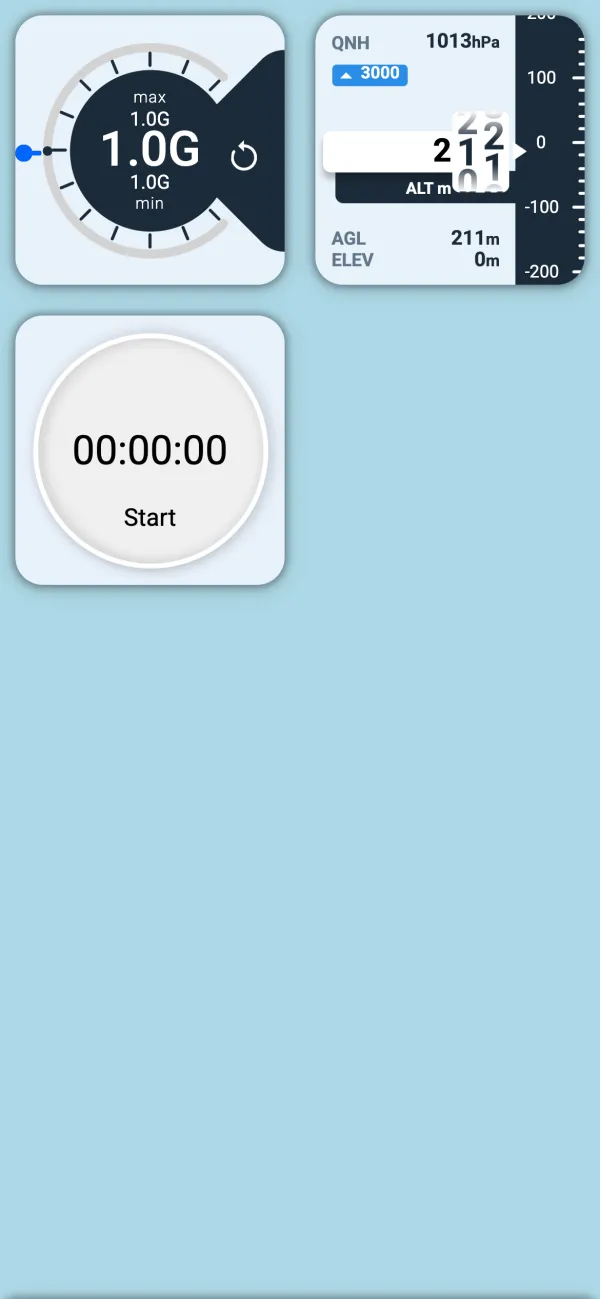
- Widget — a full-screen grid of widgets and no map. Ideal for a second screen dedicated to instruments: a PFD, engine gauges, a variometer.
Login Types: User, System and Child
| Login Type | Behaviour | Typical use |
|---|---|---|
| User | The screen belongs to a person. It shows the login page — or, once Remember me was ticked, logs that pilot in automatically at power-on. | The main display in front of each pilot. |
| System | No login at all. The screen shows a widget layout stored with the aircraft, identical for every flight and every pilot. | An always-on instrument panel: engine gauges, PFD. |
| Child | The screen waits for a pilot to sign in on its parent screen, then follows that pilot automatically — same account, no second login. Logs out when the parent logs out. | A second screen or a tablet extending the pilot's main display. |
Two rules when combining the two properties. A System screen is always a Widget screen; selecting System switches the Screen Type to Widget for you. A Child can only be a Widget screen, and its parent is chosen from the list of other screens under Parent ID.
With several auto-login screens on board, they sign themselves in one after another during power-up, so do not be alarmed when a second display takes a few extra moments to come alive.
Display Profiles: your layouts follow you
Everything you arrange on a screen — widget layout, navbox line, map layers, aircraft symbol, widget columns — is stored in a Display Profile. Profiles belong to you, not to the screen. They are part of your personal settings, they synchronise to LX Cloud, and they follow you to any NAVIA-equipped aircraft. Step into a different glider, sign in, pick your profile, and the screens look exactly as they do at home.
Keep several if it helps — one per aircraft type, or one per screen size. They are managed under User Settings › Preferences › Manage Profiles, where each profile has a name, an aircraft type and a screen type. Which profile a screen currently uses is chosen either there or on the screen's card in Screen Management, and unlike the rest of the screen configuration, switching the active profile is allowed for every user, not only the owner.
System screens are the exception: they use a layout stored with the aircraft, so the panel the owner configured stays identical whoever flies.
Screen Management
Airplane Settings › Screen Management lists every screen the Core has ever seen, each as a card carrying its Screen Name (give each display something meaningful — "Panel 12", "Right seat 7", "Engine 4"), its Screen ID, its Screen Type and Login Type, the Parent ID if it is a Child, and its current Display Profile.
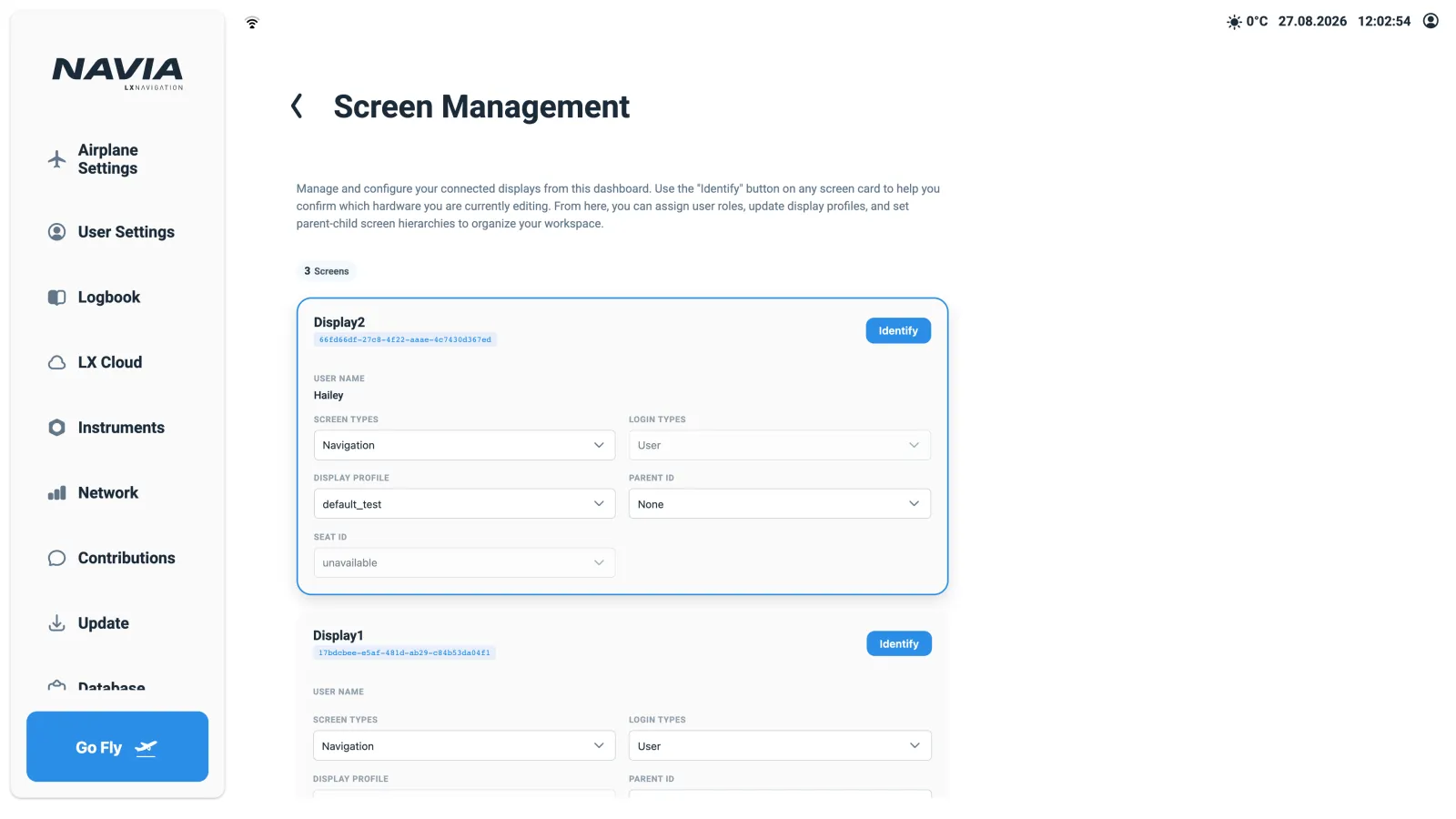
Screen Type, Login Type and Parent ID are owner and admin settings; a Regular user sees only their own screens and can change only the Display Profile — from User Settings › Preferences › Manage Profiles, since Airplane Settings is not shown to them. When several screens are installed and you have lost track of which is which, press Identify on a card: the corresponding physical display briefly shows its name and ID full-screen.
Using your phone or tablet as a screen
Because displays are just browsers, adding one takes a minute.
- Open
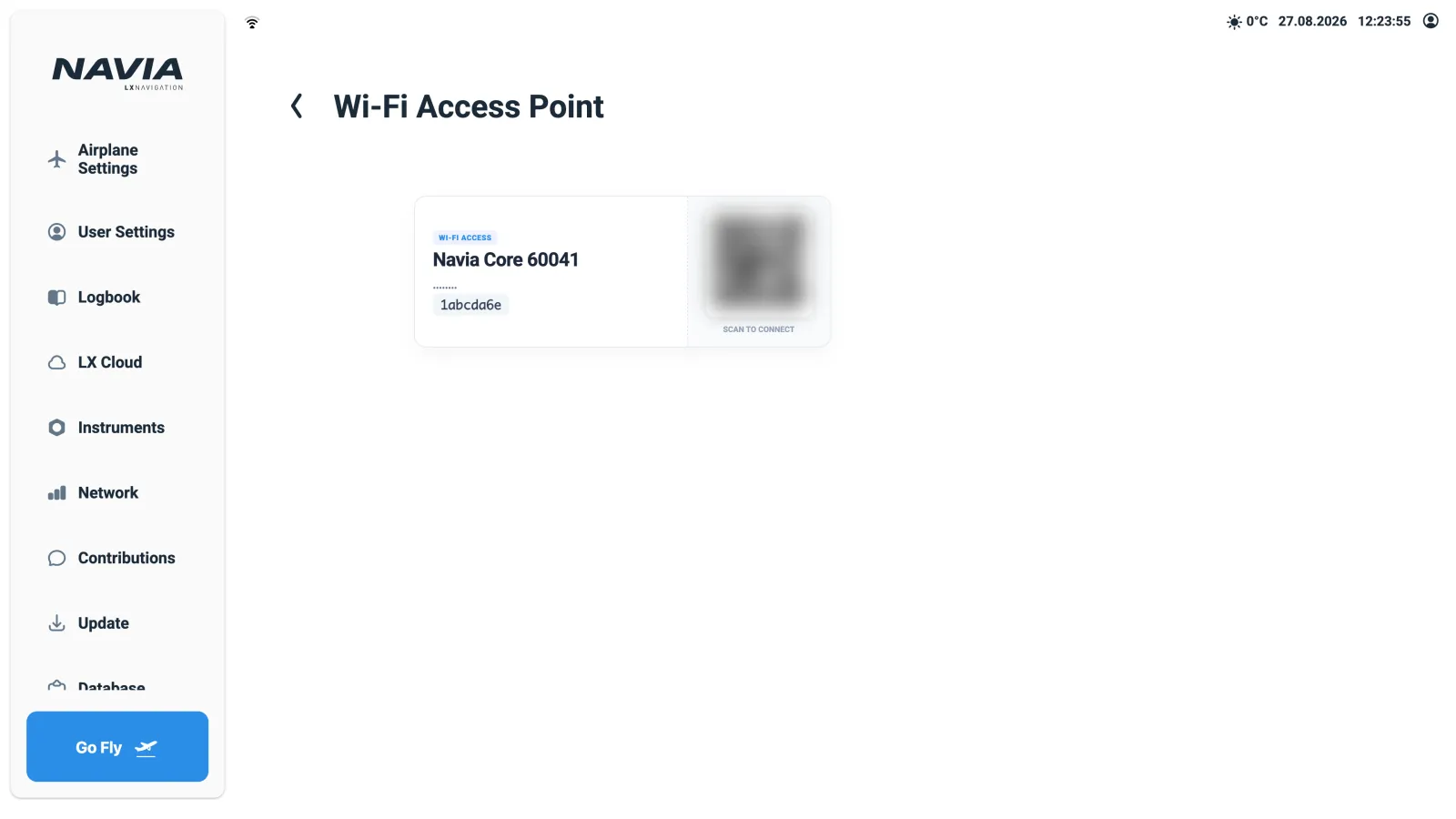
Dashboard › Network › Wi-Fi Access Pointon any existing screen. It shows the aircraft's own Wi-Fi network — the NAVIA Access Point — with a QR code labelledScan to Connect. - Scan the QR code with the phone or tablet, or join the shown Wi-Fi network manually.
- Open the browser on the device and navigate to the Core's address. The device registers itself and appears in Screen Management as a new screen.
- Configure it there: typically Screen Type
Widgetand Login TypeChildwith your main display as parent. The tablet then follows your login automatically, and you arrange widgets on it exactly as on any other screen.
Where to go next
- Trying all of this without an aircraft: Navia OS in your browser.
- Setting up the aircraft the accounts sign in to: commissioning a new aircraft.
- What synchronises, when, and what happens with no internet: NAVIA and LX Cloud.
- The hardware behind the screens: NAVIA system architecture and the NAVIA range.
- Screens behaving in ways this article does not explain: NAVIA troubleshooting.