
The cloud half of NAVIA exists to solve a dull, familiar problem: your settings live in one instrument, your flights live on an SD card, and moving either between aircraft is a chore involving a laptop. NAVIA keeps your side of the system in LX Cloud instead, and the Core synchronises with it whenever it has internet.
None of which means you need internet to fly. This article covers what synchronises and when, what still works with no connection at all, how flights are recorded, and what the logbook lets you do with them afterwards.
Everything follows you
The Core synchronises with LX Cloud whenever it has internet — over the aircraft's Wi-Fi, its cellular modem, or your phone's hotspot. It is silent and needs no attention. The result:
- Your settings and layouts — all User Settings, Display Profiles and checklists — are uploaded, and downloaded again wherever you sign in, on your own aircraft or on the other side of the world.
- Your files — waypoints, airspace, tasks — uploaded to your cloud account appear on the aircraft, and files you remove in the cloud are removed on the aircraft too.
- The aircraft's configuration is backed up as well, so a replacement Core can be restored rather than reconfigured from the flight manual again.
- Your flights upload themselves after landing.
Because your side of the system lives in the cloud rather than in the instrument, you do not need to be in the aircraft to work on it. Navia OS also runs in a browser at glider.flynavia.com: sign in there with the same account, build the task for next weekend and lay out your screens at your desk, and the Core picks it all up the next time it has internet. See Navia OS in your browser.
What belongs to you, and what belongs to the aircraft
The split decides what arrives with you when you sign in somewhere else, and what stays behind.
| Travels with your account | Stays with the aircraft |
|---|---|
| User Settings, notifications, audio, units | Aircraft category, registration and call sign |
| Display Profiles and widget layouts | Configurations: polar, flight envelope, weight and balance |
| Waypoint, airspace and task files | Declared devices — radio, transponder, traffic, sensors |
| Your personal checklists | Screen names, Screen Types and Login Types; aircraft checklists |
| Your recorded flights | The layout shown on System screens |
The aircraft's half is backed up to the cloud as well, but it belongs to the aircraft, not to whoever is signed in — which is exactly why a Regular user cannot change it.
When synchronisation runs
Synchronisation runs at sign-in and then every few minutes. When the same setting was changed in two places, the newer change wins — which is worth knowing if you upload files to your cloud account while somebody else is powering up your aircraft.
It does not run in flight. Settings, databases and flight uploads all wait until the aircraft is on the ground again: the configuration you took off with is the configuration you land with.
Databases are part of that: do database work before the flight, not on the grid.
Working offline
Internet is never required for flying, and the system is deliberately undramatic about losing it.
- Accounts that have signed in before can sign in again offline with the same password. The Core remembers them.
- Your role and settings from the last synchronisation are used, so an offline sign-in is not a degraded one.
- Settings, databases and layouts all live on the Core. Nothing about flying depends on a connection.
- Anything done offline — changed settings, new flights — synchronises silently the next time the aircraft is online.
LX Cloud services
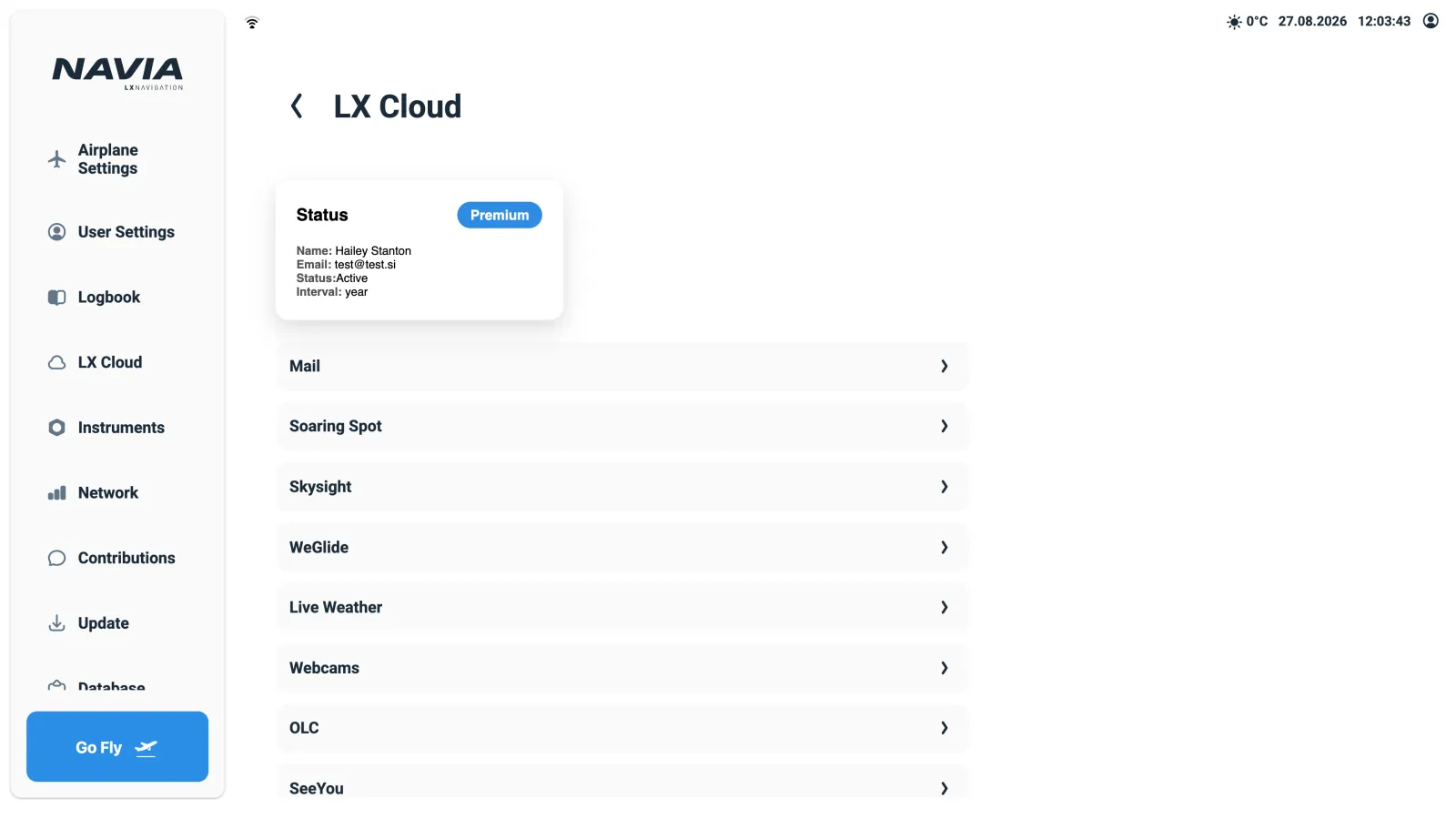
Dashboard › LX Cloud shows your subscription — Free, Trial or Premium — and the connected services. E-mail delivery of flights is free. Premium unlocks integrations such as Soaring Spot, Skysight weather, WeGlide, SeeYou, OLC, live weather and webcams.
Flight recording
Every flight is recorded automatically. There is no recorder to arm and no way to forget it.
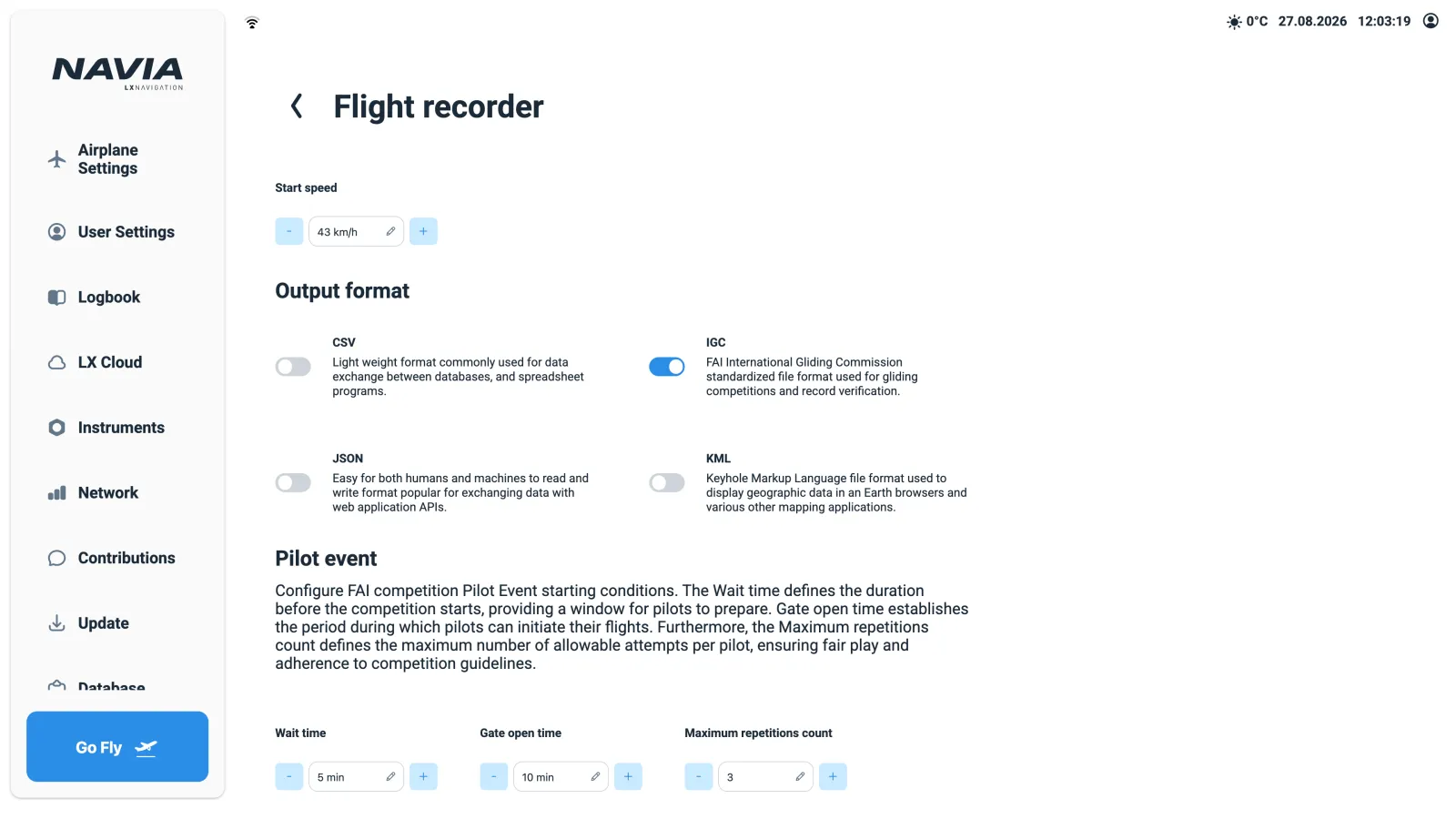
- Recording starts when the aircraft accelerates past the start speed set under
User Settings › Flight recorder, and stops a few minutes after landing. - The IGC file header is filled in automatically: pilot in command and second pilot from the accounts signed in, aircraft type, registration and competition ID from the aircraft settings.
- Flights are digitally signed for competition and badge validation.
- Additional formats — CSV, JSON, KML — can be produced alongside the IGC file, under
User Settings › Flight recorder.
Because the header is assembled from accounts and aircraft settings rather than typed in before each flight, it is only as correct as those are. If the registration or competition ID on the aircraft page is wrong, every file you record carries the error. Check it once, at commissioning.
Competition starts: the pilot event
NAVIA implements the FAI pilot event (PEV) start procedure. Press the event button — for example a long press on a NAVIA Grip function button — and the system marks the event in the log and runs the configured wait and open start window, with the configured maximum number of repetitions.
Wait time, open time and repetitions are set under User Settings › Flight recorder › Pilot event. Set them to match the local procedure before the contest, not on the first competition day.
The logbook
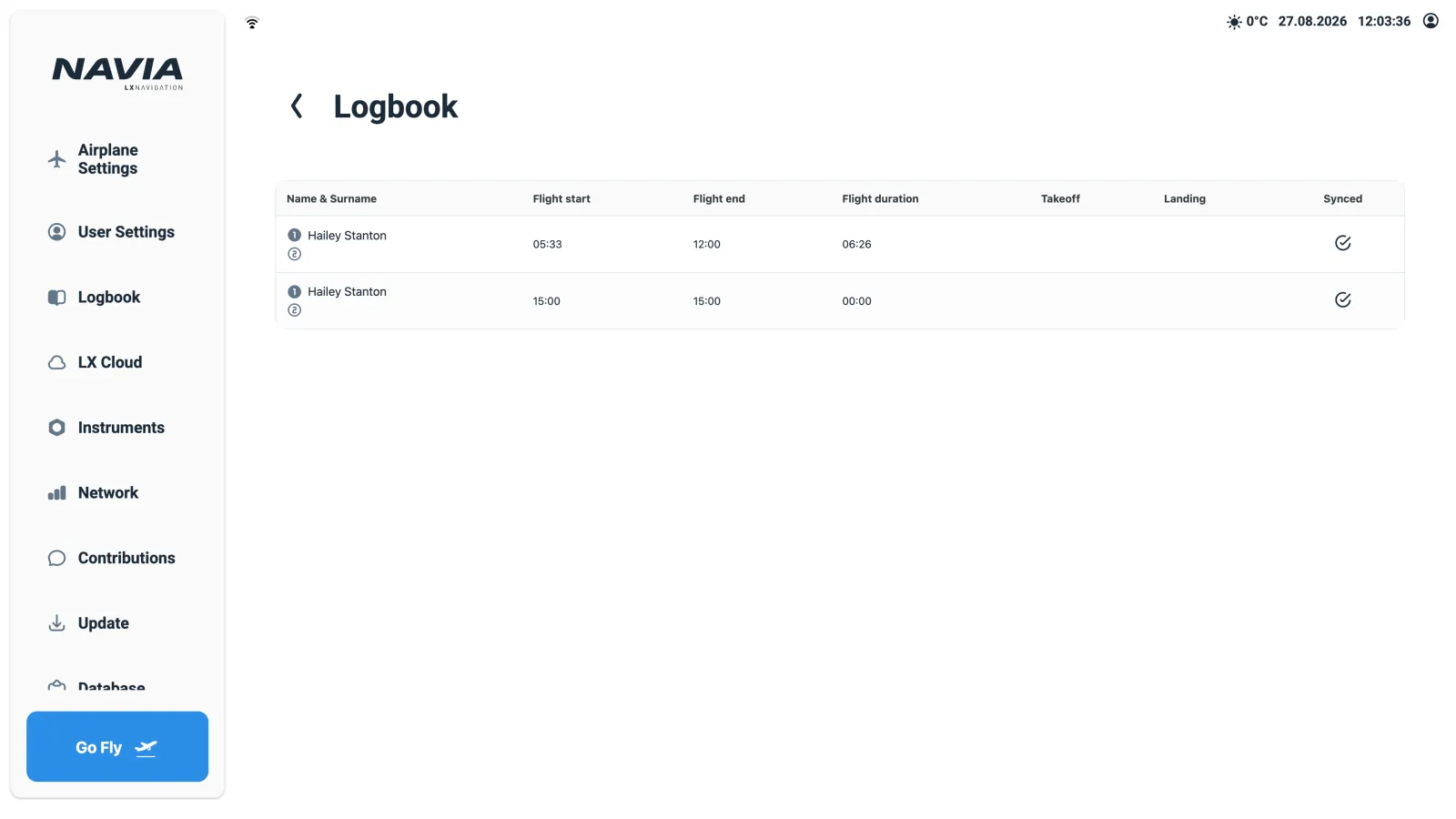
Dashboard › Logbook lists your flights with take-off and landing, times, and per-flight statistics — maximum altitude, G-loads, maximum speed.
From a flight's detail page:
Sync to cloud now— flights upload automatically after landing when internet is available. This button forces it, which is what you want for a flight that has not reached the cloud because the aircraft has been offline since it landed.Start sharing— send the flight to WeGlide, OLC, SeeYou, SoaringSpot, or by e-mail.- Download the IGC file directly — the Core also serves its flights on its own local web page, reachable over the NAVIA Access Point with no internet at all. A phone on the access point is enough to get a file off the aircraft in a field.
That last point is the one worth remembering at an outlanding. The flight does not need the cloud to exist, and it does not need the cloud to leave the aircraft.
Where to go next
- What makes a flight log count as evidence: IGC logs and how they are validated.
- The recorder hardware and its calibration: NAVIA Sense, the IGC recorder and calibration.
- Getting the aircraft settings that fill the IGC header right in the first place: commissioning a new aircraft.
- Accounts, roles and whose files are loaded in flight: accounts, roles, profiles and screens.
- Doing your preparation on the ground, in a browser: Navia OS in your browser.