
Most NAVIA problems are not faults. They are the system doing exactly what somebody configured it to do — a Child screen politely waiting for its parent, an owner-only page hidden from a Regular account, a flight that has not reached the cloud because the aircraft has not seen internet since it landed.
This article is the reference for telling those apart from real ones: what each status-bar item reports, what every warning and alarm is triggered by, and a symptom-by-symptom table for the things that most often send pilots looking for a manual.
The status bar reports the system, not the flight
The status bar along the top of every screen is about the health of the installation: recorder state, power, connectivity, databases, pending updates and the devices on the network. A glance at it after power-on tells you the system is complete.
The important convention: an item only demands attention when it is highlighted. A status bar full of quiet icons is a healthy one, and there is no need to interpret each of them before every flight.
Status bar items
| Item | Reports |
|---|---|
| Logger | Flight recorder state — ready, recording, or closing the flight after landing. |
| Battery | Active power source, charge state and, on backup power, remaining time. |
| Network | Internet connectivity: Wi-Fi, cellular signal, or none (offline mode). |
| Communication | Health of each connected device: radio, transponder, traffic receiver, external sensors. |
| Satellites | GNSS reception status. |
| Maps | Map and chart services: databases loading or missing. |
| Core update | A system software update is available or in progress. |
| Ecosystem update | A connected NAVIA device — Sense, Grip and the rest — is receiving firmware. |
| Inputs | State of the configured digital inputs: gear, airbrakes, event button. |
Warnings and alarms
All of these are enabled and tuned under User Settings › Notifications, and most produce both an on-screen alert and a voice or tone output.
| Warning | Triggers | Applies to |
|---|---|---|
| Traffic | Conflicting traffic or obstacle reported by the traffic receiver | All |
| Terrain | Predicted terrain conflict ahead, with advisory levels up to "Pull up!" | All |
| Airspace | Approaching or entering airspace of an enabled class or type | All |
| Stall | Airspeed near the configured stall speed | All |
| VNE | Airspeed near or over the never-exceed speed | All |
| Flaps max speed | Speed outside the current flap position's range | Aircraft with flaps |
| G load | Load factor outside the configured limits | All |
| Maximum / selected altitude | Reaching the configured or selected altitude | All |
| Gear (takeoff, landing, outlanding) | Gear state inconsistent with the flight phase, with the gear input wired | All |
| Air brakes | Airbrakes out at the wrong moment, with the input wired | Glider |
| Engine parameters | Any EMU channel leaves its configured zone | Motorplane |
| C.G. out of limits | Current loading outside the C.G. envelope | All |
| Battery low / backup power | Supply voltage low, running on UPS, or main power restored | All |
| Ballast dump temperature | OAT near the minimum for dumping water | Glider |
| Oxygen | Above the configured oxygen altitude | All |
| Drink / sunset | Regular hydration reminder; sunset approaching | All |
Several of these depend on numbers entered at commissioning — stall speeds, VNE, load factors, the C.G. envelope — and several depend on an input being wired, notably gear and airbrakes. A warning that never fires is worth investigating before you conclude that you never needed it.
Tuning notifications without disabling them
User Settings › Notifications is personal, so it follows your account rather than the aircraft, and the tuning that suits your flying arrives with you in a club machine. Start by silencing the reminders that do not apply to your day — drink and sunset are the usual candidates — rather than the ones that watch the airframe.
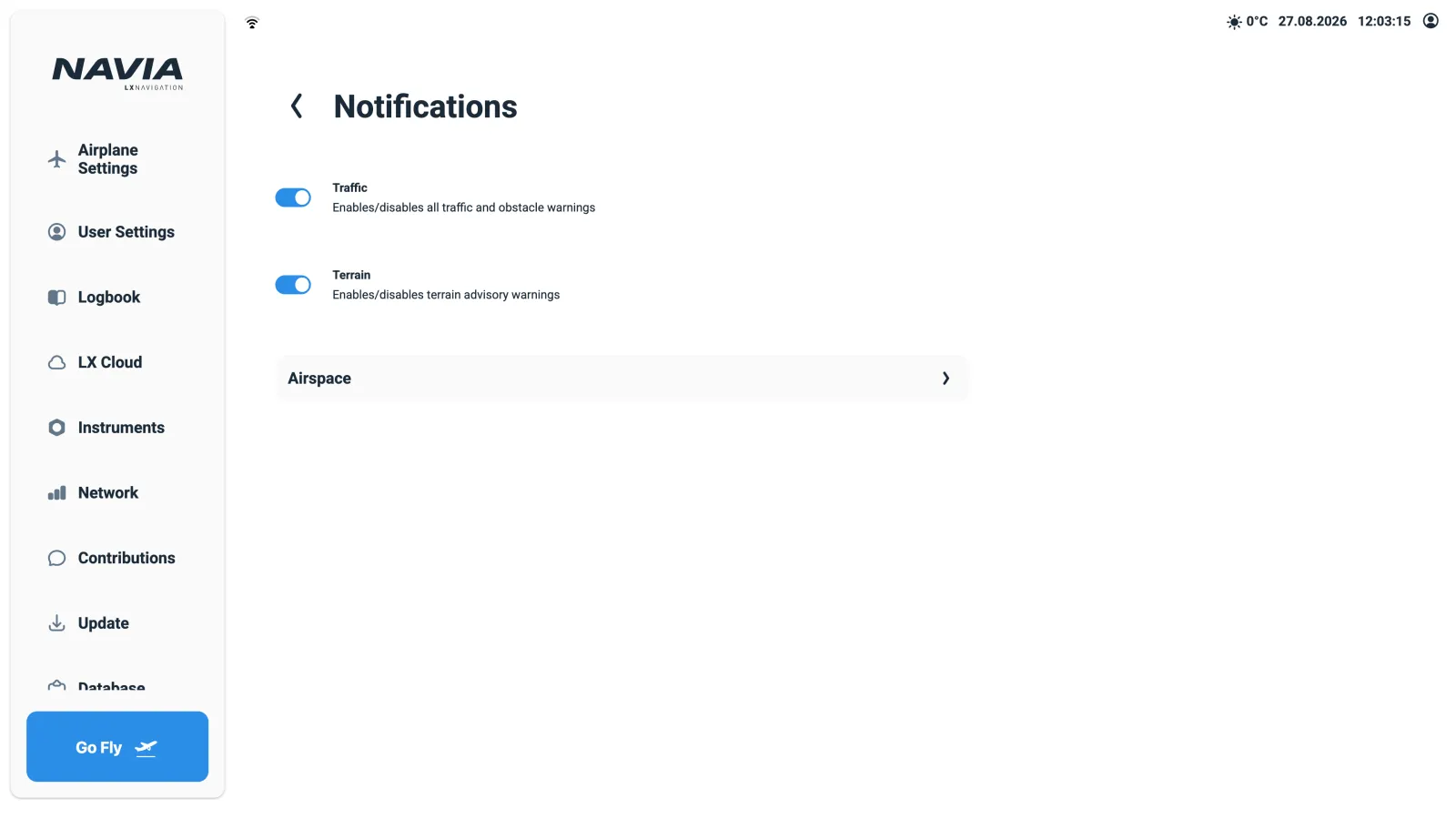
The warnings on that page can be switched off, including Terrain and Traffic. Turning one off to stop a nuisance alert is how a system that would have spoken up at the right moment ends up silent. Fix the cause instead — the airspace filter, the stall speed, the input wiring.
Symptom, cause and fix
| Symptom | Likely cause | Fix |
|---|---|---|
| "Aircraft not configured" shown | Polar or envelope incomplete | Owner completes the configuration — see commissioning a new aircraft |
Login page appears although Remember me was ticked | Auto-login is cleared when you log out, or the screen was reconfigured | Sign in once more with Remember me |
| Second screen stuck waiting | It is a Child screen and nobody is signed in on its parent | Sign in on the parent display, or change the screen's Login Type |
| Display Profile dropdown says Unauthorised | The screen currently belongs to another user | That user, or the owner, changes it — profiles are personal |
| A widget shows a red cross | Its data source is absent: engine off, device missing | Check the device under Instruments and in the status bar |
| No traffic on the map | Traffic receiver not configured, disabled, or ranked below another source | Owner: Devices page — device, Enable traffic, priority — then Reconnect Serial Devices |
| Serial device silent after changing settings | New settings not applied to the port | Press Reconnect Serial Devices on the Devices page |
| No warning sound | Notification disabled, or volume down | User Settings › Notifications and User Settings › Audio |
| No vario sound (glider) | Vario audio disabled, or the silence band too wide | User Settings › Audio › Variometer; use Play Sound to test |
| Settings did not follow me to another aircraft | Synchronisation had no internet window, and it never runs in flight | Give the system a few minutes online after sign-in, on both aircraft |
| Flight not in the cloud | No internet since landing | Logbook › flight › Sync to cloud now once online |
| Update refuses to start | No Wi-Fi internet, or signed in without owner/admin rights | Connect the Core to Wi-Fi with internet; sign in as owner or admin |
Airplane Settings not visible | Signed in as Regular or Guest | Normal — only the owner and admins configure the aircraft |
| Wrong time shown | Timezone or DST setting | User Settings › Localisation |
| Phone cannot join the aircraft network | QR scan unsupported on the phone | Join the shown Wi-Fi manually, then open the NAVIA address in the browser |
| Not sure which screen is which | — | Identify on the screen's card in Screen Management |
One symptom that is not a fault
Screens come alive one after another at power-up. With several auto-login screens on board they sign themselves in one after another, so a display taking a few extra moments is normal. The two other non-faults in the table above — a missing Airplane Settings and a Child screen waiting for its parent — are the system working as designed.
Before you contact support
Have these ready, and most cases are settled in one exchange:
- What the status bar shows, and which item is highlighted.
- Whether you are signed in as owner, admin, Regular or Guest — half of the "missing" pages are role-related.
- The device list from
Instruments(owner or admin), with versions and serial numbers. - Whether the aircraft has had an internet window since the symptom appeared.
Remote access stays off unless you enable it, so if we ask for it during a case you turn it on then, and not before.
Where to go next
- Background theory behind the warnings: airspace, how FLARM works, angle of attack and oxygen and hypoxia.
- What each unit on the network is and how power reaches it: NAVIA system architecture.
- Getting the configured numbers right in the first place: commissioning a new aircraft.
- Anything this table does not cover: contact us.