
Keeping a NAVIA panel current is deliberately boring. There is one update page, it needs internet, and the rest of the aircraft follows the Core without cables, card readers or per-device downloads. Databases and charts live on their own page, Dashboard › Database.
This article covers what Dashboard › Update actually does, what the three update channels mean, how the ecosystem devices are kept in step, where databases and charts come from, and how remote support is switched on and off.
Updating the Core
Dashboard › Update handles the system software. The aircraft must be connected to a Wi-Fi network with internet access — this is the one job that specifically needs Wi-Fi rather than any connection. Download and installation progress is shown live, and the system reboots into the new version when it is done.
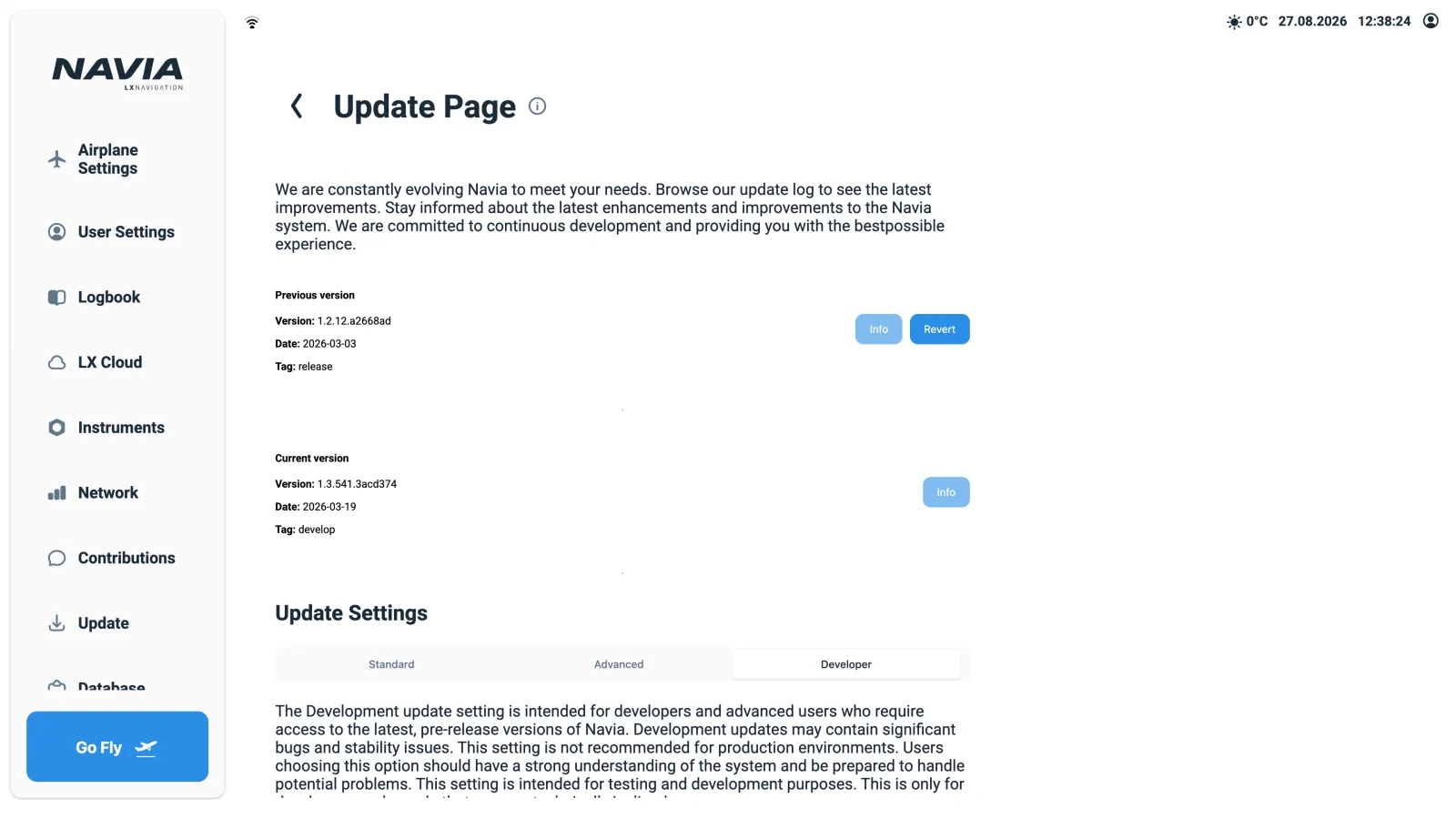
The system reboots into the new version when the update finishes. Start one on the ground with time in hand, never while the launch queue is forming.
Starting an update — or reverting one — is an owner or admin action. A Regular or Guest account can see the page but not act on it, which is the same rule that protects the rest of the aircraft configuration.
The three update channels
The channel is a per-user setting, and it decides which versions the aircraft is offered.
| Channel | What it delivers |
|---|---|
| Standard | Released versions. Recommended, and the right answer for almost everybody. |
| Advanced | Early features, ahead of the released version. |
| Developer | Not described in the manual; not for normal use. |
An automatic mode can keep the system on the latest release of your channel without asking. Combined with Standard, that is the lowest-maintenance configuration available: the aircraft simply stays current.
If a new version misbehaves, the previous version can be reverted to. Knowing that the way back exists is what makes it reasonable to update before a season rather than after it.
Ecosystem devices update themselves
Firmware for the NAVIA ecosystem — Sense, Grip and the rest — ships inside the Core's system software. Whenever a device appears on the aircraft network running older firmware, the Core updates it automatically and reports progress in the status bar as the Ecosystem update item.
The practical consequences are worth stating plainly:
- No cables. Nothing is unplugged from the panel to be flashed.
- No separate downloads. There is no per-device firmware file to find, match to a serial number, or get wrong.
- No order of operations. Update the Core, and the rest of the aircraft follows on its own.
- A device swapped in later catches up by itself, the first time it appears on the network.
Wait for the Ecosystem update item in the status bar to clear before switching off.
Databases and charts
Airspace, points of interest and charts are updated from the cloud under Dashboard › Database. Personal files you maintain in your LX Cloud account — your own waypoints and airspace — do not go through this page at all; they arrive by the normal synchronisation, along with the rest of your settings.
That difference matters when something is missing:
| What is missing | Where to look |
|---|---|
| Official airspace, points of interest, charts | Dashboard › Database |
| Your own waypoint or airspace files | Your LX Cloud account, then give the aircraft an online window |
Airspace changes on a published cycle, and an expired file is not a neutral inconvenience — it is a warning system that is confidently wrong. Database hygiene covers the discipline; the firmware and database season check is the checklist version.
Remote support
For diagnostics, LX navigation support can connect remotely to your Core over its internet connection — only when you enable it. The remote access switch is under your control and stays off unless you turn it on during a support case.
If you are in a support case and we ask you to enable it, turn it on for the case and off again afterwards. If nobody has asked, leave it alone.
Taking care of the hardware
- Displays — clean with a soft, slightly damp cloth. No solvents. Avoid focused sunlight through the canopy or through magnifiers on a parked aircraft: a sunburned display is not covered by warranty.
- Connectors — do not force them, and strain-relieve cables as the installation manuals require.
- Power — observe supply polarity. The system tolerates reverse polarity without damage, but it will not operate.
- Ventilation — keep the Core's mounting area ventilated as prescribed in the installation manual.
A sensible order for a pre-season pass
- Put the aircraft on a Wi-Fi network with internet and leave it there long enough to be useful.
- Run the Core update and let the reboot complete.
- Watch the status bar until the Ecosystem update item has finished with every connected device.
- Update databases and charts under
Dashboard › Database. - Give the system a few minutes online after signing in, so personal files and settings synchronise.
- Check the status bar is clean before the first flight of the season.
Where to go next
- The full seasonal checklist: firmware and database season check.
- Why an out-of-date airspace file is worse than none: database hygiene.
- What synchronisation moves and when: NAVIA and LX Cloud.
- An update that refuses to start, or a device that will not come current: NAVIA troubleshooting, then contact us.